

Google Maps Search Operators: The Complete Guide to Faster Searches (2026)

Google Maps is more powerful than most people realize—and knowing the right search operators can transform how quickly you find exactly what you’re looking for, whether you’re a casual user, a marketer, or an SEO professional optimizing for local search.
Key Takeaways
- Google Maps supports a range of search operators and techniques that help users pinpoint businesses, landmarks, and services with precision.
- Combining search terms with location modifiers, category filters, and proximity keywords dramatically improves search accuracy.
- Local SEO professionals can use Google Maps search behavior to inform keyword strategy, Google Business Profile optimization, and citation building.
- Common mistakes—like using overly broad terms or ignoring category-specific searches—reduce the quality of results significantly.
- Understanding how Google Maps indexes business listings helps both users find businesses and business owners get found.
What Are Google Maps Search Operators?
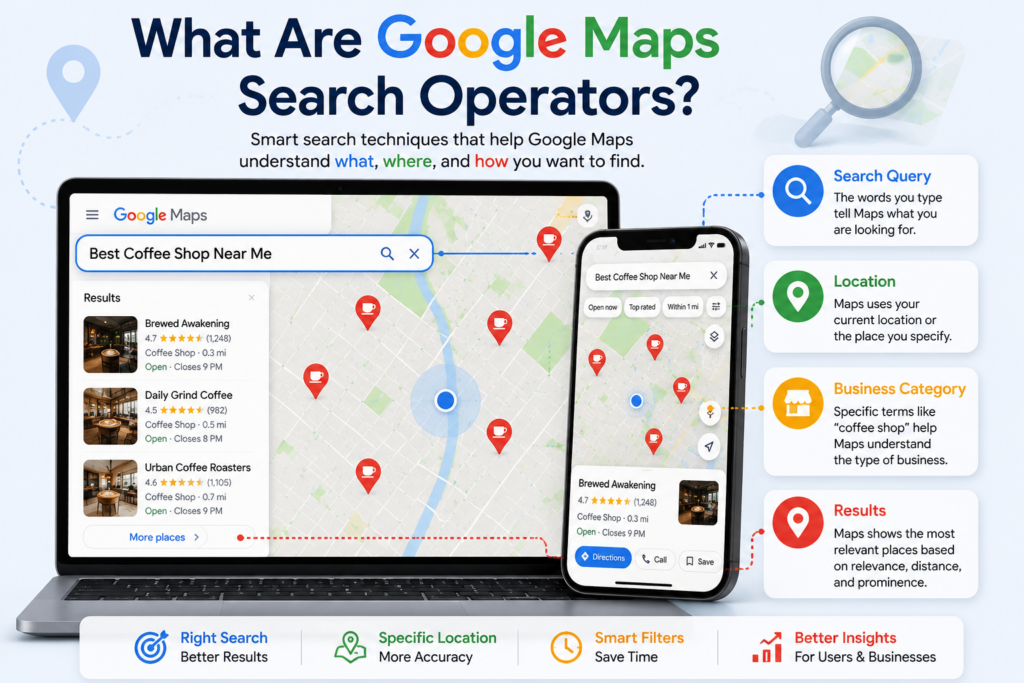
Google Maps search operators are specific words, phrases, and query structures that help Google Maps return more accurate, targeted results. Think of them as refined instructions you give the search engine—telling it not just what to find, but where, how close, and what kind.
Unlike traditional Google Search operators (such as site:, intitle:, or filetype:), Google Maps does not support the same formal syntax. Instead, Google Maps relies on natural language processing (NLP), semantic search, and structured location data to interpret user intent. Knowing how to phrase your search query—using the right combination of category terms, location modifiers, proximity keywords, and qualifiers—functions as an operator in practical terms.
For example:
- best sushi restaurants near downtown Chicago tells Google Maps the category (sushi), the qualifier (best), and the location (downtown Chicago).
- 24-hour pharmacy Austin TX layers the business type, an availability qualifier, and a specific city.
These structured query patterns consistently produce sharper, more relevant results—and that’s the core value of understanding Google Maps search operators.
How Google Maps Search Works
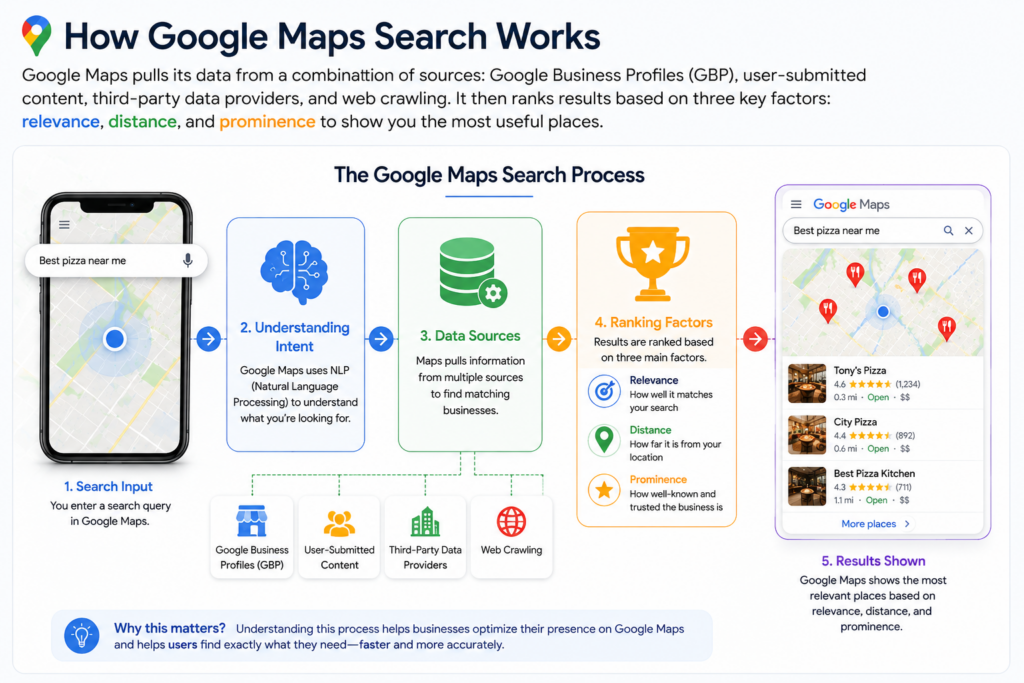
Google Maps pulls its data from a combination of sources: Google Business Profiles (GBP), user-submitted content, third-party data providers, and web crawling. According to Google Maps Help documentation, the three primary factors that influence which results appear are relevance, distance, and prominence.
- Relevance measures how well a business listing matches a user’s search query.
- Distance calculates how far potential results are from the user’s location or the location specified in the search.
- Prominence reflects how well-known a business is, based on information from across the web—links, articles, reviews, and GBP data.
When you type a query into Google Maps, the platform processes your input using its NLP engine to identify the intent behind it. It then cross-references its index of business listings to surface the most appropriate results based on those three ranking factors.
This is why well-optimized Google Business Profiles rank better: the more complete and accurate the listing, the higher the relevance score Google Maps assigns to it.
Benefits of Using Advanced Search Techniques
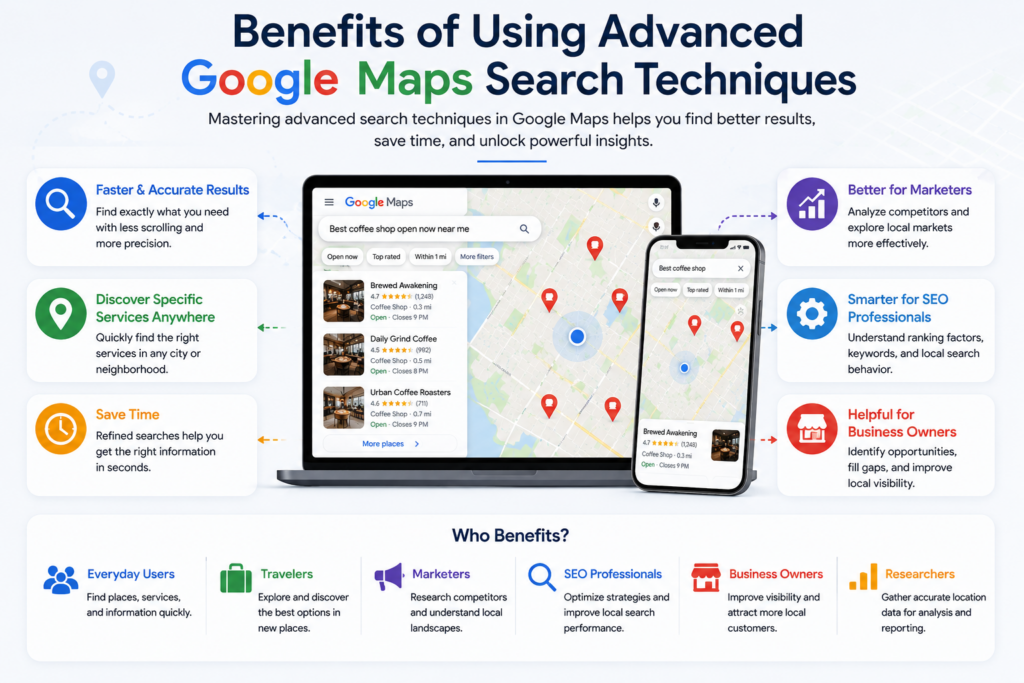
Mastering Google Maps search techniques offers tangible advantages across different user types:
| User Type | Key Benefit |
| Everyday users | Faster, more accurate results with less scrolling |
| Travelers | Discover specific services in unfamiliar cities |
| Marketers | Conduct competitive research and local landscape analysis |
| SEO professionals | Understand how Google Maps indexes and ranks local businesses |
| Local business owners | Identify gaps in the market and optimize for visibility |
| Researchers | Gather structured location data for analysis |
Beyond convenience, advanced search techniques save time. A vague query like restaurant in a major city could return thousands of irrelevant results. A refined query like vegetarian restaurant open now near Brooklyn Bridge narrows the field to exactly what you need—instantly.
Basic Search Operators and Their Uses
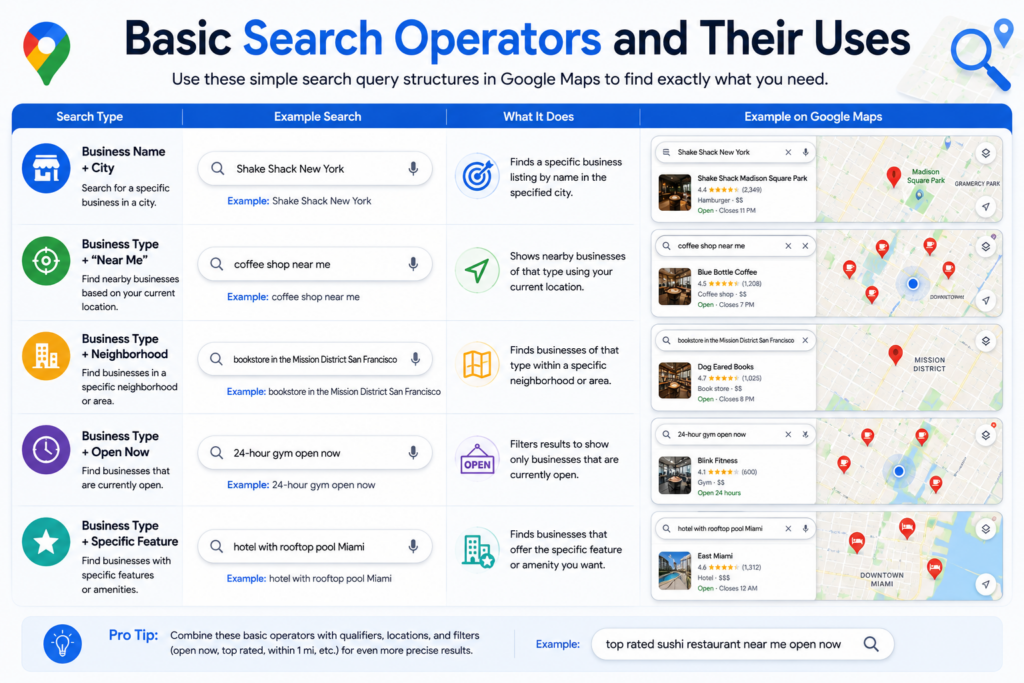
The following query structures form the foundation of effective Google Maps searching. None require special syntax—just deliberate phrasing.
Business Name + City
Search for a specific business by name alongside the city.
- Example:Shake Shack New York
Business Type + “Near Me”
Let Google Maps use your current location to find nearby options.
- Example:coffee shop near me
Business Type + Neighborhood
Target a specific area within a city.
- Example:bookstore in the Mission District San Francisco
Business Type + Open Now
Filter for currently open locations. Note: this is best paired with the “Open Now” filter in the Maps interface.
- Example:24-hour gym open now
Business Type + Specific Feature
Narrow results by a specific attribute or amenity.
- Example:hotel with rooftop pool Miami
Advanced Search Operators with Explanations
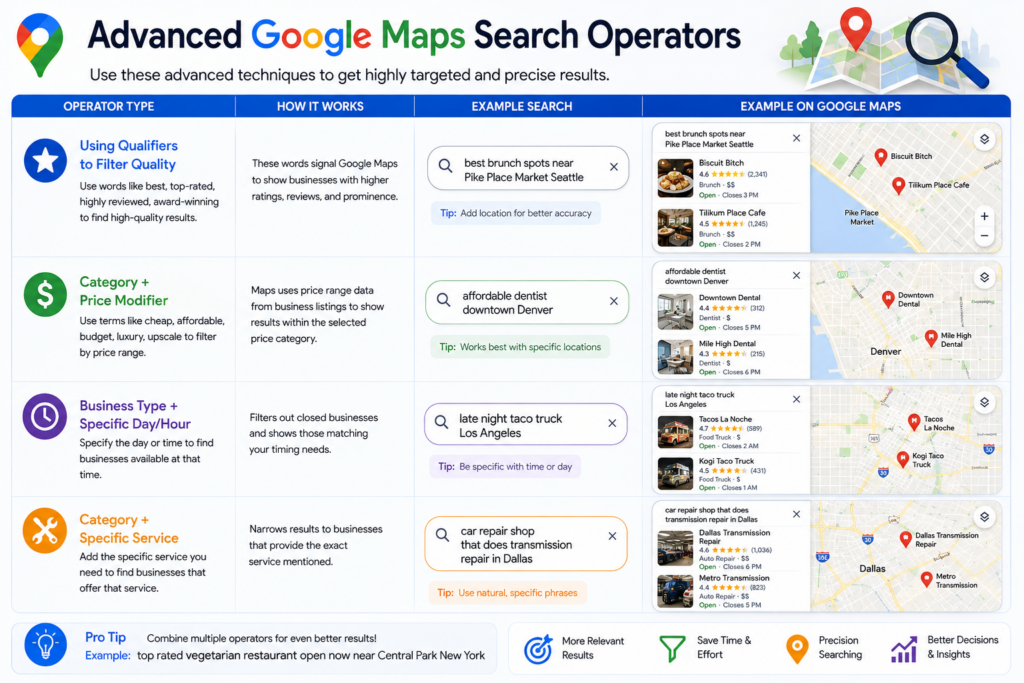
Moving beyond the basics, these advanced query structures layer multiple search signals to produce highly targeted results.
Using Qualifiers to Filter Quality
Words like best, top-rated, highly reviewed, and award-winning signal to Google Maps that you want results with strong prominence and review scores.
- best brunch spots near Pike Place Market Seattle
- top-rated auto repair shop in Phoenix AZ
Category + Price Modifier
Words like cheap, affordable, budget, luxury, and upscale tap into Google Maps’ ability to interpret price range data from business listings.
- affordable dentist downtown Denver
- luxury spa Beverly Hills
Business Type + Specific Day/Hour
Specifying availability filters out closed businesses and surfaces those matching your timing needs.
- late night taco truck Los Angeles
- Sunday brunch restaurant Nashville
Category + Specific Service
Mentioning a specific service within a broader category helps Google Maps match the query to businesses that explicitly list that service.
- mechanic specializing in BMW near me
- hair salon that does keratin treatments Austin
Location + Distance Modifier
Phrases like within walking distance, close to [landmark], or near [neighborhood] act as proximity filters.
- ATM near the Eiffel Tower Paris
- pharmacy within walking distance of Times Square
Practical Search Examples
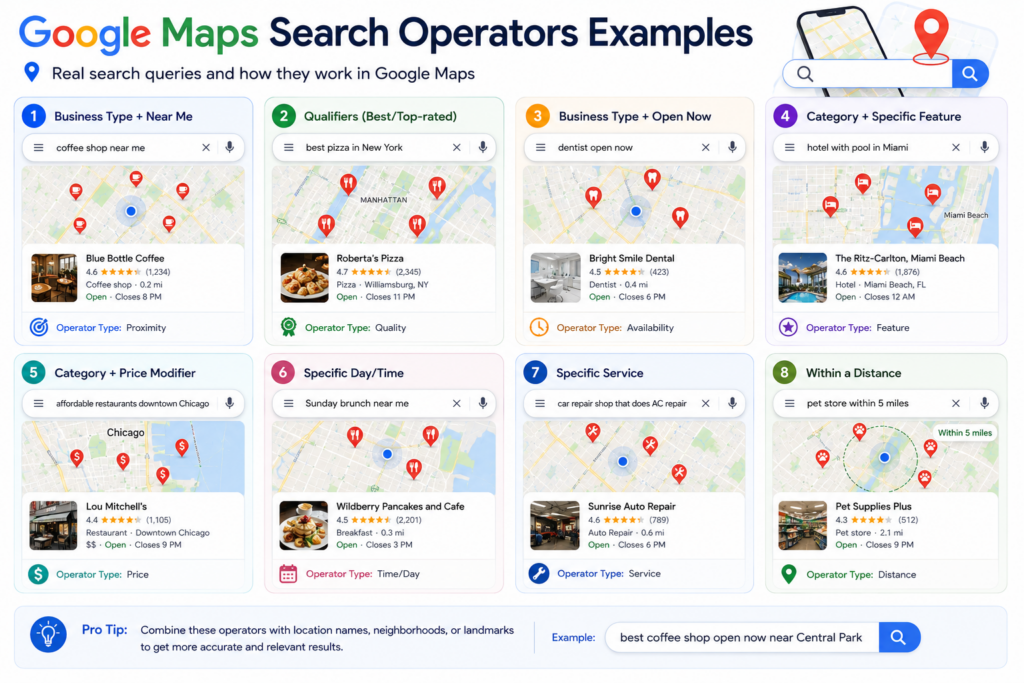
Here are 30+ real-world search queries across popular business categories, demonstrating how to structure effective Google Maps searches.
Restaurants and Food
- best ramen restaurant in Midtown Manhattan
- vegan café near Golden Gate Park San Francisco
- halal restaurants open late near me
- rooftop bar with food Chicago downtown
- cheap eats near the French Quarter New Orleans
Hotels and Accommodation
- pet-friendly hotels near Disneyland Anaheim
- boutique hotel in Savannah GA under $200
- hotels with free parking near Las Vegas Strip
- extended stay hotels near Houston Medical Center
Hospitals and Healthcare
- urgent care clinic open now near me
- children’s hospital near downtown Atlanta
- walk-in clinic accepting new patients Seattle
Schools and Education
- Montessori preschool near Austin TX
- public library with study rooms near me
- community college near Long Beach CA
Pharmacies
- 24-hour pharmacy near downtown Miami
- compounding pharmacy near me
Coffee Shops
- coffee shop with outdoor seating near me
- specialty coffee roaster in Portland OR
- quiet café with WiFi for working near me
ATMs and Banks
- free ATM near me no fee
- Chase bank ATM near downtown Boston
Gas Stations and EV Charging
- gas station open now near highway I-95
- Tesla supercharger near me
- EV charging station near downtown San Diego
Tourist Attractions and Parks
- family-friendly tourist attraction near me
- national park within 2 hours of Denver
- dog-friendly hiking trail near me
Shopping and Malls
- mall with Apple Store near me
- outlet stores near me open on Sunday
Car Repair
- 24-hour tow truck service near me
- tire shop open Saturday near me
Airports and Travel
- airport parking near LAX
- car rental near JFK Airport New York
Searching Businesses by Category
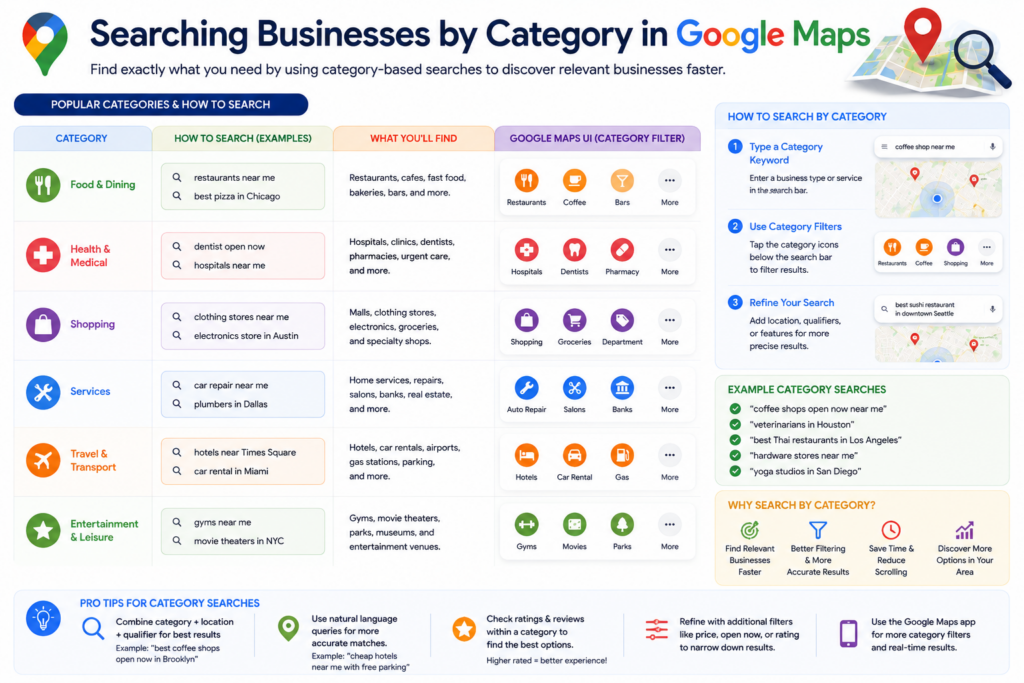
Google Maps organizes business listings by primary and secondary categories, which are set within the Google Business Profile. Knowing how Google Maps categorizes businesses helps you search more effectively.
When you search by category—for example, Italian restaurant, urgent care, or yoga studio—Google Maps cross-references your input with the primary categories assigned to local businesses. The more specific your category term, the more precise your results.
Tips for category-based searches:
- Use industry-standard category names when possible (e.g., orthodontist rather than braces doctor)
- Combine categories with location or feature modifiers for better precision
- Subcategory searches (e.g., craft beer bar instead of just bar) return more targeted results
Searching Locations by City, State, and Country
Adding geographic specificity to your search queries dramatically improves relevance, especially in cities with neighborhoods sharing names across states.
City-Level Searches
- best breakfast spot Portland Oregon (distinguishing from Portland, Maine)
- florist near downtown Denver CO
State-Level Searches
State-level searches are useful when researching a broader region or planning travel across multiple cities.
- scenic overlooks in New Mexico
- state parks in Vermont
Country-Level Searches
For international travel planning, country-level searches surface high-prominence results within that country.
- best traditional market in Japan
- historic churches in Italy
Finding Nearby Businesses
The phrase “near me” is one of the most powerful modifiers in Google Maps search. According to Google Trends data, searches containing “near me” have grown significantly over the past decade, reflecting the rise of mobile-first, location-aware search behavior.
Google Maps uses your device’s GPS, IP address, or a manually entered location to determine proximity. For the best “near me” results:
- Enable location services on your device
- Use the app rather than the desktop browser for real-time location accuracy
- Combine “near me” with time-based qualifiers: open now, open late, 24-hour
You can also search relative to a landmark, address, or intersection:
- grocery store near Fenway Park Boston
- coffee near 5th Avenue and 42nd Street New York
Searching by Ratings and Reviews
While Google Maps doesn’t support a formal rating: operator like some databases do, you can influence results toward higher-rated businesses through smart query structuring and built-in filters.
Query-based approaches:
- Use qualifiers like best, top-rated, highly reviewed, and award-winning
- Be specific about what you want to be excellent: best service auto shop, best atmosphere wine bar
Filter-based approaches:
The Google Maps interface includes a rating filter that lets you set a minimum star threshold (e.g., 4.0+). Combined with a well-structured search query, this produces reliable, high-quality results.
Review count matters:
A business with 4.8 stars and 12 reviews ranks differently from one with 4.6 stars and 1,200 reviews. Google Maps weighs both rating and review volume as part of its prominence calculation.
Using Keywords Effectively in Google Maps
Google Maps interprets keywords within search queries to match them against business names, categories, descriptions, and attributes found in Google Business Profiles. This is why the words you choose in a search query directly affect which listings appear.
High-Intent Keywords
These signal that the user is ready to act:
- book appointment, open now, near me, delivery available, walk-ins welcome
Feature-Specific Keywords
These filter by amenity or service:
- free WiFi, outdoor seating, parking available, wheelchair accessible, accepts Apple Pay
Contextual Keywords
These add nuance and layer multiple signals into one query:
- quiet coworking space with private booths near downtown Austin TX
From an SEO perspective, local businesses benefit when their GBP descriptions, services, and attributes naturally include the same keywords their target customers use in Maps searches.
Google Maps Search Tips and Productivity Hacks
Save Searches and Locations
Use the “Save” feature to bookmark frequently visited or planned locations. Create custom lists (e.g., “Date Night Spots” or “Client Meeting Locations”) for easy reference.
Use Street View for Pre-Visit Research
Before visiting an unfamiliar business, use Street View to familiarize yourself with the surroundings, parking access, and entrance location.
Enable Offline Maps
Download maps for specific regions to search and navigate without an internet connection—useful for travel in areas with poor connectivity.
Use the “Explore” Tab
The Explore tab surfaces trending and popular spots based on your location and search history. It’s a discovery tool that works well alongside direct searches.
Share Locations Directly
Use the Share feature to send a business listing or set of directions to colleagues, clients, or travel companions—more reliable than copying an address manually.
Search Within a Specific Area
Pan the map to a different location, then click “Search this area” to find businesses in a region you’re not physically located in.
Common Mistakes Users Make
Even experienced users make search errors that return poor results. Here are the most common—and how to avoid them.
| Mistake | Why It’s a Problem | Better Approach |
| Searching too broadly | Returns thousands of irrelevant results | Add neighborhood, feature, or qualifier |
| Ignoring filters | Misses the rating, hours, and distance tools built into Maps | Always apply relevant filters post-search |
| Misspelling business categories | Returns no results or wrong category matches | Use Google’s autocomplete suggestions |
| Not specifying city when traveling | Maps defaults to your current location | Always include destination city in query |
| Relying solely on “near me” | Ignores direction or landmark context | Pair with landmark or neighborhood name |
| Searching business names with typos | Returns incorrect or zero listings | Use partial names + city to find the right match |
Google Maps Search Operators for Local SEO
For SEO professionals and local business owners, understanding Google Maps search behavior is a strategic asset. The way users search Google Maps directly influences how you should optimize a Google Business Profile.
Keyword Research Through Maps Searches
Run searches for your business category in your target location to see which competitors appear and what attributes they emphasize. This reveals the exact language your potential customers use.
Competitive Analysis
Search for your direct competitors by category and location. Analyze their:
- Review count and average rating
- Category assignments
- Business description keywords
- Photos and posts frequency
Identifying Search Gaps
Search for services you offer and observe whether your business appears. If not, it signals an optimization opportunity—your GBP may be missing relevant keywords, categories, or attributes.
Local Pack Ranking Signals
According to Google Search Central documentation, local search ranking is influenced by the completeness and accuracy of a Google Business Profile. Ensuring your GBP includes:
- Accurate NAP (Name, Address, Phone number)
- Primary and secondary categories
- Detailed services and products
- Regular posts and updated photos
…all contribute to better visibility in Google Maps search results.
Google Business Profile Optimization Tips
A well-optimized Google Business Profile is the single most important factor in Google Maps visibility. Here’s what to prioritize, based on guidance from the Google Business Profile Help Center.
Complete Every Section
Fill out every available field: business name, address, phone, website, hours, services, products, attributes, and business description. Incomplete profiles rank lower.
Choose the Right Primary Category
Your primary category has the greatest influence on which searches trigger your listing. Choose the most specific category that accurately describes your core business.
Add Secondary Categories
Secondary categories allow your business to appear in related searches. A Mexican Restaurant might also add Taco Restaurant and Catering Service as secondaries.
Write a Keyword-Rich Business Description
Your 750-character business description should naturally include the terms your customers search for—without keyword stuffing. Describe what you do, where you serve, and what makes you different.
Collect and Respond to Reviews
Review quantity and quality are both ranking signals. Encourage satisfied customers to leave reviews, and always respond—particularly to negative feedback.
Post Regularly
Google Posts appear directly in your GBP listing on Maps. Regular posts signal to Google that the business is active, which can positively influence ranking.
Best Practices for Finding Local Businesses
Pulling together everything covered so far, here are the overarching best practices for getting the most out of Google Maps search:
- Start specific, not broad. Lead with the most precise descriptor you have (e.g., pediatric dentist, not just dentist).
- Layer qualifiers progressively. Add location, time, rating, and feature modifiers to narrow results.
- Use the Explore and Filter tools. Don’t rely solely on text search—the built-in filters and tabs surface data your query alone may miss.
- Cross-reference with Reviews. Click through to top results and read recent reviews before committing to a visit.
- Check Photos. Photos uploaded by owners and users provide ground-truth verification of what a business actually looks and feels like.
- Verify hours before visiting. Hours displayed on Maps are only as accurate as the business owner’s updates—calling ahead for special holiday hours is always smart.
Limitations of Google Maps Search
Despite its power, Google Maps search has notable limitations:
- No formal Boolean operators. Unlike Google Search, you cannot use AND, OR, NOT, or quotation marks for exact-match searches in Google Maps.
- Reliance on GBP accuracy. Results are only as good as the data businesses submit. Closed businesses, wrong hours, and incorrect addresses are common.
- Limited attribute filtering. While filters exist for hours and ratings, many specific attributes (e.g., women-owned, LGBTQ+ friendly) require manual browsing rather than direct search filtering in most interfaces.
- Prominence bias. Highly prominent chains and franchises often appear above smaller, higher-quality local alternatives due to their stronger online presence.
- Spam listings. Despite Google’s efforts, fake and duplicate listings occasionally appear in search results, particularly in competitive local categories.
Privacy and Safety Considerations
Using Google Maps involves location data sharing, which carries privacy implications worth understanding.
- Location history: Google Maps stores your location history by default if you’re signed in. You can review, pause, or delete this data through your Google Account settings.
- Incognito mode: Google Maps offers an Incognito mode that prevents searches and navigation from being saved to your account. Enable it via the profile icon in the app.
- Sharing your location: The Live Location sharing feature allows real-time tracking by selected contacts. Use this feature selectively and review who has access regularly.
- Reviewing business listings: When submitting reviews or edits, your Google account name may be publicly associated with your contributions.
For users in the EU and other regions with data protection regulations, Google provides region-specific privacy controls in compliance with local laws, as outlined in Google’s Privacy Policy.
Future Trends in Google Maps Search
Google Maps continues to evolve, and several developments are reshaping how people search for local businesses and places.
AI-Powered Search Integration
Google has been integrating its Gemini AI models more deeply into Maps, enabling more conversational, context-aware searches. Queries like where should I take my parents for dinner tonight who like seafood but not too fancy? are becoming increasingly viable.
Immersive View
Google’s Immersive View feature uses AI to create photorealistic 3D representations of locations, giving users a richer sense of a place before visiting.
Enhanced Local Discovery
Google continues to improve its Explore functionality, surfacing personalized local recommendations based on behavioral signals—what you’ve searched, saved, and visited.
Real-Time Data Integration
Expect deeper integration of real-time data—live wait times, occupancy levels, and dynamic pricing—directly within Maps listings, particularly for restaurants, parking facilities, and attractions.
Voice Search Optimization
As voice search grows through Google Assistant and smart devices, optimizing Google Business Profiles for conversational, natural-language queries is becoming more important for local SEO.
Quick Reference Cheat Sheet
Google Maps Search Operators at a Glance
| Operator/Technique | Purpose | Example |
| [Category] near me | Find nearby businesses of a type | pharmacy near me |
| [Category] in [City] | Search by specific city | rooftop bar in Nashville |
| best [Category] near [Landmark] | Quality + proximity search | best pizza near Central Park |
| [Category] open now | Filter by current availability | grocery store open now |
| [Category] with [Feature] | Filter by specific amenity | hotel with free breakfast |
| 24-hour [Category] | Find always-open services | 24-hour laundromat near me |
| cheap/affordable [Category] | Filter by price range | affordable coworking space Austin |
| [Category] near [Address] | Proximity to a specific address | coffee near 123 Main Street |
| [Category] [City] [State] | Avoid location ambiguity | burger joint Portland Oregon |
| top-rated [Category] | Surface high-prominence results | top-rated plumber near me |
Basic vs. Advanced Search Methods
| Method | Complexity | Best For | Example |
| Single keyword | Basic | Quick browsing | pizza |
| Category + location | Basic | City-level searches | pizza Chicago |
| Category + qualifier + location | Intermediate | Targeted discovery | best deep dish pizza Chicago |
| Multi-modifier query | Advanced | Highly specific needs | vegan gluten-free café open Sunday near downtown Portland OR |
Google Search vs. Google Maps Search
| Feature | Google Search | Google Maps |
| Formal operators (site:, intitle:) | Supported | Not supported |
| Location-based ranking | Limited | Core ranking factor |
| Business listing data | Partial (snippets) | Full GBP data |
| Real-time hours/availability | Limited | Yes |
| Rating/review filters | No | Yes |
| Street View integration | Limited | Full |
| Best for | Information queries | Local discovery |
FAQs
What are Google Maps search operators?
Google Maps search operators are structured query techniques—combinations of category terms, location modifiers, qualifiers, and proximity keywords—that help Google Maps return more precise and relevant results. Unlike Google Search, Google Maps does not support formal Boolean operators like site: or AND, but strategic query phrasing functions similarly.
Does Google Maps support Boolean search operators like AND, OR, and NOT?
No. Google Maps does not support formal Boolean operators. However, natural language phrasing achieves similar outcomes. For example, instead of restaurant NOT fast food, try sit-down restaurant near me or filter by category.
How do I search for businesses near a specific landmark or address in Google Maps?
Include the landmark or address directly in your query. For example: ATM near the Louvre Museum Paris or coffee shop near 200 Park Avenue New York NY. Google Maps will interpret the geographic reference and prioritize results in that area.
How can I find businesses that are currently open in Google Maps?
Type open now as part of your query (e.g., pharmacy open now near me), or use the “Open Now” filter available in the Google Maps interface after performing a search.
Why does Google Maps show different results for the same search on different devices?
Results vary based on your device’s location, location history, and whether location services are enabled. A search performed on a desktop browser defaults to your IP-based location, while a mobile device uses GPS—which is typically more precise.
How do I search for highly rated businesses on Google Maps?
Use qualifiers like best, top-rated, or highly reviewed in your query. After searching, apply the rating filter in the Maps interface to set a minimum star threshold (e.g., 4.0 stars or higher).
Can I use Google Maps to research competitors for SEO purposes?
Yes. Searching for your business category in your target city reveals which competitors appear in the Local Pack and Google Maps results. Analyzing their GBP listings—categories, review count, attributes, and descriptions—provides direct insight into what Google considers relevant for your market.
What is the difference between Google Search and Google Maps search?
Google Search retrieves web pages, articles, and structured data from across the internet. Google Maps search specifically queries its local business index, returning location-based results with real-time data like hours, ratings, and Street View. Google Maps is optimized for local discovery; Google Search is optimized for information retrieval.
How does Google Maps decide which businesses appear first in search results?
According to Google Maps Help documentation, results are ranked based on three factors: relevance (how well the listing matches the query), distance (proximity to the user or specified location), and prominence (how well-known and reputable the business is online).
How can local business owners improve their visibility in Google Maps searches?
The most effective steps, per Google Business Profile Help, include: completing every section of your Google Business Profile, selecting accurate primary and secondary categories, collecting and responding to reviews, adding high-quality photos, and publishing regular Google Posts.
What does “near me” mean in Google Maps, and how does it work?
“Near me” instructs Google Maps to use your current location—determined by GPS on mobile devices or IP address on desktops—as the center point for proximity-based results. It’s most accurate when location services are enabled on your device.
Can I search Google Maps without sharing my location?
Yes. You can manually type a city, address, or landmark into the search bar instead of allowing Google Maps to access your device’s location. Alternatively, use Incognito mode in the Google Maps app to search without saving activity to your account.
Are Google Maps search results personalized?
Google Maps personalizes results based on your location, past searches, and saved places when you’re signed in. Signed-out searches return results based primarily on location and relevance without personalization.
How do I find EV charging stations using Google Maps?
Search EV charging station near me or specify a brand: Tesla Supercharger near me. Google Maps also includes an EV charging filter in the Explore tab on mobile, showing nearby charging points with real-time availability in supported areas.
What are the best Google Maps search strategies for travelers?
For travel, the most effective strategies include: specifying the destination city in every query to override your home location, using the “Search this area” button after panning the map, downloading offline maps before your trip, and using the Explore tab to discover trending spots in your destination.
What Comes Next: Putting Google Maps Search to Work
Google Maps is far more than a navigation app—it’s a local discovery engine, a competitive research tool, and a platform that connects real-world businesses with the people actively looking for them.
For everyday users, the key is precision: specific queries, layered modifiers, and smart use of the built-in filters consistently outperform vague, single-term searches. For marketers and SEO professionals, understanding how Maps interprets search queries is inseparable from Google Business Profile strategy—the way people search is the blueprint for how businesses should optimize.
Your next steps:
- Test your queries. Run searches for your own business category and location to see where you or your clients appear.
- Audit your Google Business Profile. Cross-reference your GBP against the optimization tips in this guide and identify gaps.
- Build a search query library. Compile a list of high-intent, category-specific queries relevant to your market—these double as keyword research for local SEO.
- Stay updated. Google Maps evolves continuously. Monitor the Google Maps Help Center and Google Search Central Blog for platform updates that affect search behavior.
The businesses that show up first aren’t always the biggest or the best—they’re the ones that understand how people search and have optimized accordingly. That understanding starts here.


В зависимости от сложности проекта прогон хрумером цена https://www.olx.ua/d/uk/obyavlenie/progon-hrumerom-dr-50-po-ahrefs-uvelichu-reyting-domena-IDXnHrG.html может варьироваться.